I have my mother to thank for introducing me to electronic mail (email) when I was a child, starting with Microsoft's Hotmail (Outlook.com today) over dial-up. Now in her retirement years, my mother is increasingly unsure whether an email she receives is trustworthy, especially with the deluge of unsolicited email that seems never-ending. She exited the workforce before security awareness training became commonplace. Nowadays, she depends on me to help her discern if she should open a message, particularly important when she is a Medicare beneficiary and Social Security recipient as older folks are frequently targeted with fake benefit and/or billing emails.
For decades, email has been one of the most highly used ways to communicate around the globe. According to a 2026 Forbes article, there are approximately 4.48 billion email users worldwide and a daily volume of roughly 361.6 billion messages, with the United States the undisputed leader in email traffic.
In this post, we will look at email's history, how it works, what some of the security risks are, what steps you can take to secure your email account, and what to look out for in a suspicious email. All references are valid as of this writing, but as with all technology, things can and will change so please keep that in mind.
A Brief History of Electronic Mail
Email has its origins in the time-sharing era of computing: mainframes and PDP-10s. Thanks to brilliant minds at the Massachusetts Institute of Technology (MIT), a "mailbox" program was successfully developed to allow time-share users to send and receive messages to one another on the same system. In 1971, a developer by the name of Ray Tomlinson created applications to send and receive messages on PDP-10 systems running the TENEX operating system: SNDMSG ("send message") and READMAIL ("read mail"). These tools complemented Tomlinson's earlier project, a file transfer program called CPYNET ("copy net"). By combining these programs and the accompanying CPYNET protocol, Tomlinson made it possible to send and receive messages between users outside of the local system. The system was very primitive by today's standards. This was not email as we think of it today but merely a precursor. Fun fact: Tomlinson is credited with coming up with the now ubiquitous email address format of "local_part@domain" with "local_part" being the username and the domain being the system address (mail server) where their mailbox is located.
Later, the Advanced Research Projects Agency (ARPA), a research arm of the U.S. Department of Defense (DoD), developed its ARPANET computer network, the predecessor to today's Internet. Tomlinson's developments on the PDP-10 were implemented for ARPANET and its newly minted File Transfer Protocol (FTP) by fellow computer scientist and Internet pioneer Abhay Bhushan.
Email was heavily used on ARPANET, largely thanks to the advocacy of ARPA Director, Stephen Lukasik. The adoption of email as a communications tool quickly led to users being inadvertently inundated with email with no easy way of managing their mailboxes. This problem led to the rise of the first "mail-managers," applications that provided menu-driven functionality allowing users to read, file, and delete their messages. Building upon this foundation, more "mail-manager software" programs were created with additional capabilities and convenience features.
With ARPANET's email usage and the increasing array of mail-managers, routing mechanisms, and transfer protocols, it was clear that standards were needed to create a common format for email messaging to ensure different systems and mail-managers could be interoperable.
Simple Mail Transfer Protocol and Email Authentication
Computer scientist Jon Postel is credited with publishing Request for Comments (RFC) 821: Simple Mail Transfer Protocol (SMTP) in 1982. SMTP is a standardized method specifically for sending email from one computer to another over a network, replacing older protocols, like FTP, for email transmission. Alongside Postel's publication, network engineer and researcher David Howard Crocker wrote Request for Comments 822: Standard for ARPA Internet Text Messages, defining a standard format of the emails themselves to ensure interoperability (email headers, email body, lexical tokens, etc.).
SMTP has been extended numerous times to accommodate additional capabilities. Given that these new capabilities are not required for SMTP to work, the protocol has maintained its status as the de facto method of efficiently transferring messages from one mail server to another. However, this intentional minimalism and backwards compatibility ignited concerns over security. SMTP itself does not implement safeguards such as encryption, authentication, or verification; the protocol came from an era where computers and users were far more trusted, and far less numerous, than they are today. Spam, phishing, email spoofing, Business Email Compromise (BEC), and many other attacks stem from this inherent lack of security, which is why modern email systems rely on other mechanisms to secure SMTP:
- Sender Policy Framework (SPF) — RFC 7208 (Proposed Standard in 2014)
- DomainKeys Identified Mail (DKIM) — RFC 6376 (Proposed Standard in 2011; Internet Standard in 2013)
- Domain-based Message Authentication, Reporting, and Conformance (DMARC) — RFC 9989 (Proposed Standard in 2026)
- Authenticated Received Chain (ARC) — RFC 8617 (Experimental in July 2019)
So, what does each of these security mechanisms (technically, email authentication standards) do? Without diving too deep into the technical aspects:
- SPF simply allows a domain (like Outlook.com) to list all the servers authorized to send email messages for that domain.
- DKIM allows the owner of a domain (like Microsoft owning Outlook.com) to cryptographically sign emails that are sent from their domain, mathematically confirming the email originated from their domain and not a malicious actor's domain.
- DMARC lets the receiving email server know how it should handle the email after the server has verified whether the email passes both SPF and DKIM checks ("Did this email come from the domain and the servers the sender says it came from?"). Specifically, DMARC is scrutinizing the FROM address and whether this matches the domain name identified in SPF or DKIM. If either the SPF or DKIM checks fail (or both), DMARC can instruct the receiving server to outright reject the email, quarantine the email for further scrutiny, or just let it through to the receiver's inbox. DMARC helps to greatly reduce the chance of successful email spoofing (more on that later).
- ARC allows for a bit more flexibility in DMARC's functionality. With just DMARC acting on whether SPF or DKIM checks fail (or both), some legitimate email could get blocked by accident depending on how the email was sent. In practice, emails can be routed through several different intermediate mail servers before it arrives at its destination. The passage through these intermediate servers may inhibit DMARC's ability to validate SPF and/or DKIM even though the email and these "forwarders" are legitimate. ARC allows the intermediate servers to sign the original message's validation results. The destination server can validate ARC and permit the email to be received even if its own attempt at validating SPF and DKIM fails.
To put all of this together: SPF checks who is allowed to send from a domain (e.g., outlook.com, gmail.com, etc.), DKIM ensures the email was not tampered with in transit, DMARC makes the decision on what to do with an email if it fails checks for SPF or DKIM (or both), and ARC helps ensure DMARC's decision-making can survive email forwarding through multiple servers.
If you are a website owner and you have email capability, you will want to ensure these mechanisms are in place. Even if your domain is not used to send email, you can leverage these mechanisms to ensure your domain's name is not used by malicious actors for spoofing or phishing activities. If you use a hosting provider for your website's Domain Name System (DNS) records or email service, verify with the provider that SPF, DKIM, and DMARC are in place. ARC is relatively new (as of this writing) and may not be supported by all hosting providers. Check if they offer ARC capability.
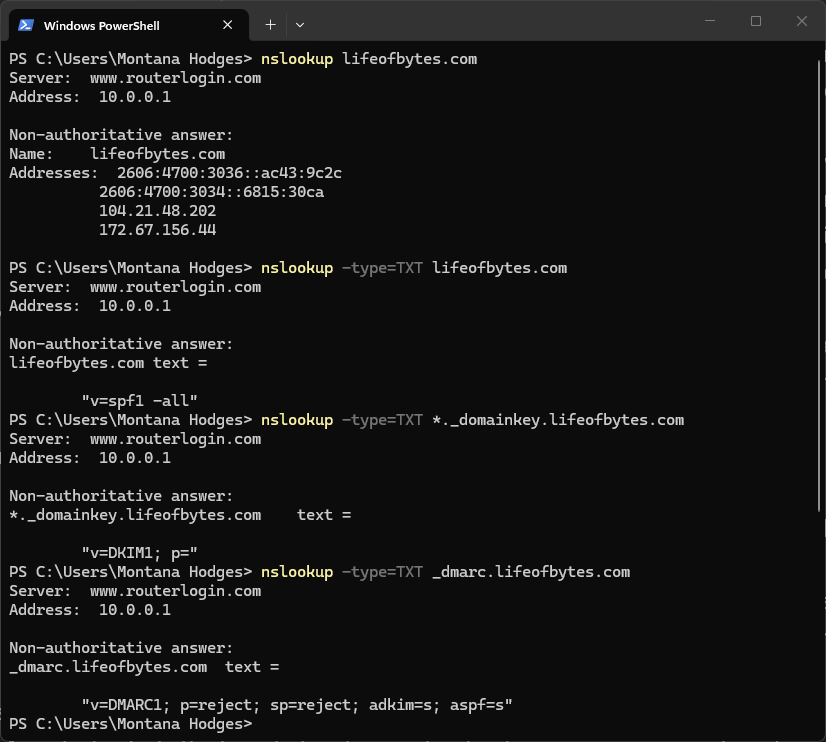
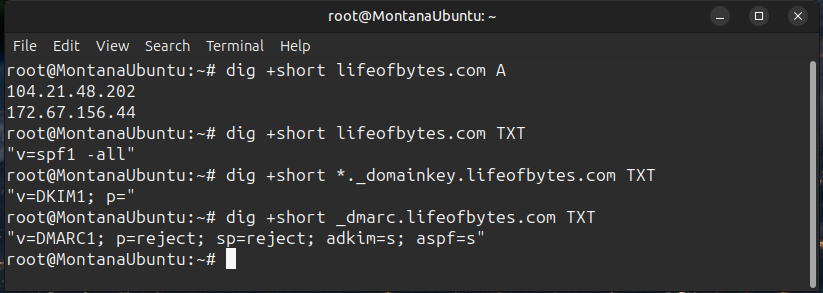
Shown below are the DNS records for the lifeofbytes.com domain that are configured to protect the domain from being used to send email. I used both Windows and Linux to show how these public records can be searched:
Structure of an Email
We can use the analogy of a traditional letter sent through the postal service to visualize the structure of an email:
- Envelope (Transport Layer — "The Delivery and Return Addresses", defined in RFC 5321: Simple Mail Transfer Protocol, obsoleting RFC 821 and related)
- Headers (Message Layer — "The Letterhead"; defined in RFC 5322: Internet Message Format, obsoleting RFC 2822 and related)
- Body (Content, "The Letter"; defined in RFC 5322: Internet Message Format, with MIME-specifics defined in RFCs 2045 through 2049: Multipurpose Internet Mail Extensions (MIME))
The Envelope contains fields needed for routing and delivery. At a minimum:
- MAIL FROM
- RCPT TO
The Headers contain fields giving the message structure and metadata describing the message. Note that not all of these will always be found:
- From
- To
- Cc (Carbon Copy)
- Bcc (Blind Carbon Copy)
- Subject
- Date
- Message-ID
- Reply-To
- Return-Path
- Authentication headers (SPF, DKIM, DMARC, and ARC)
- Received header (each mail server the message passes through will add its own Received header like postmarks)
The body contains the content of the user's message, which can be in plain text, Hypertext Markup Language (HTML; what structures a webpage and allows emails to have rich formatting, embedded links, and images), and MIME multipart messages (combination of text and HTML or attachments).
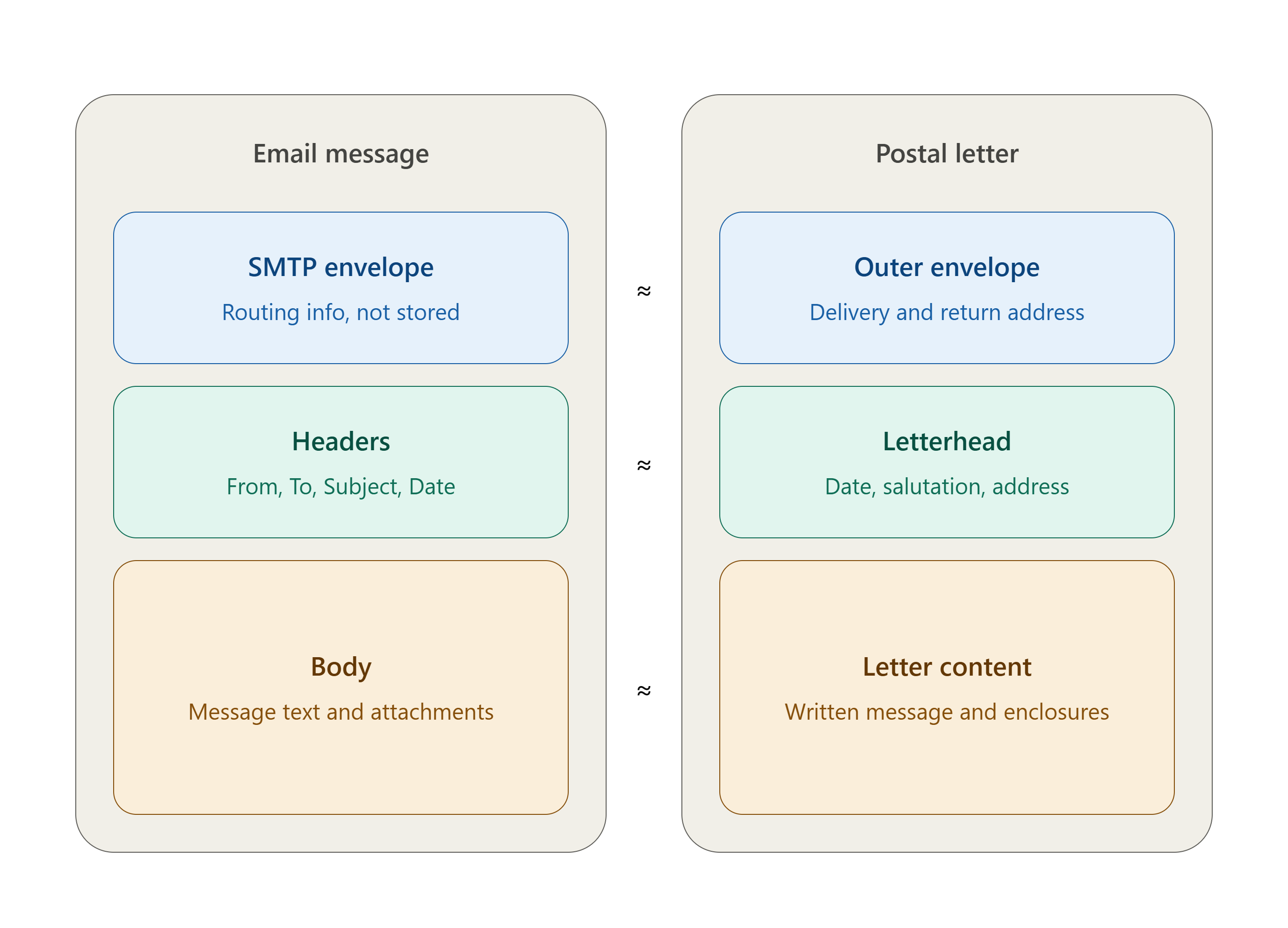
One crucial item to point out which deviates from our letter analogy: a postal envelope's return address is incredibly easy to fake, and no one at the post office checks this for accuracy. With email, our authentication methods (SPF, DKIM, DMARC, and ARC) provide a degree of trust that we do not get from physical mail. Consider DKIM's signature on the message akin to a notary stamp or a wax seal, ensuring the message was not tampered with in transit and that it really came from who it claims.
How Email Gets Sent and Received
When someone wants to send an email to another person, they fire up their email client of their choosing (or use a web interface like Gmail or Outlook.com) to write their message. When they specify the recipient and click "Send," it kicks off a defined process.
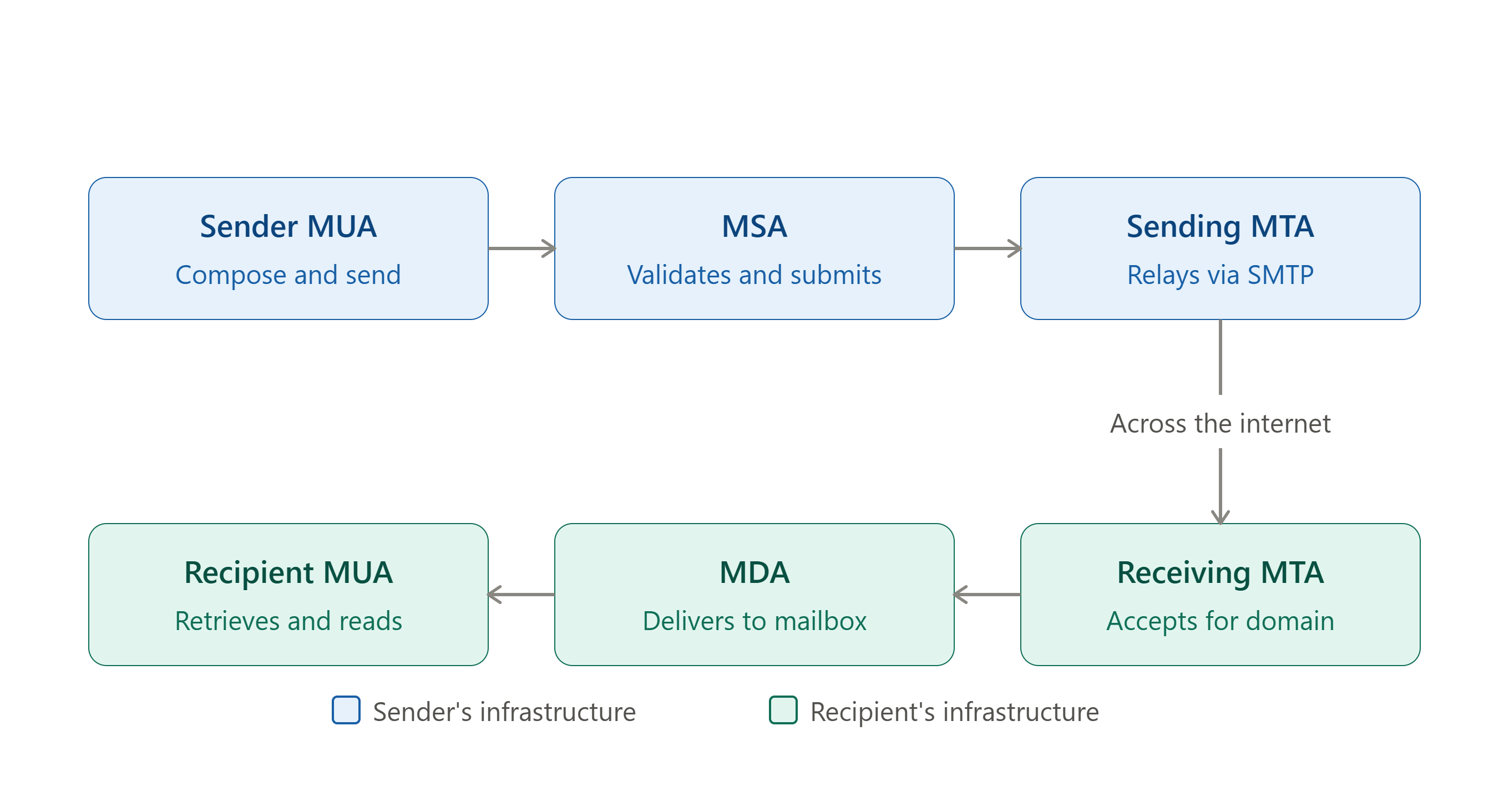
Walking through it:
- Sender's Mail User Agent (MUA) — connects to the sender's Mail Submission Agent (MSA) over SMTP "submission" (TCP 587).
- Mail Submission Agent (MSA) — validates that the email message is properly formatted and that the authenticated sender is permitted to send before handing the email to the sender's Mail Transfer Agent.
- Mail Transfer Agent (MTA) — handles sending and receiving email for a given domain over SMTP (TCP 25).
- The sender's MTA routes the email towards the recipient's MTA, which can traverse multiple relaying MTAs (mail servers) before reaching its destination.
- When the email is received by the recipient's MTA, it transfers the email to the recipient's Mail Delivery Agent.
- Mail Delivery Agent (MDA) — handles delivering the email to the specified user's inbox, typically over a local protocol such as Local Mail Transfer Protocol (LMTP), which is more efficient than SMTP for local delivery, since it doesn't need to support message queuing; the MDA can report success or failure for each recipient immediately.
- Recipient's Mail User Agent (MUA) — the recipient's email client of choice connects to their inbox and retrieves the message over a particular inbox protocol, such as Post Office Protocol version 3 (POP3) and Internet Message Access Protocol version 4 (IMAP4). Note that major providers like Microsoft and Google have deprecated Basic Authentication (plain username and password) for these protocols — not the protocols themselves — in favor of OAuth 2.0-compatible clients (what Microsoft calls "Modern Authentication"). Older clients that only support a stored password may stop working even though IMAP4 and POP3 remain valid protocols.
In practice, the sender's MSA and MTA are frequently the same server but have distinct functions. Similarly, the recipient's MDA and MTA are also commonly the same server but logically distinct.
Types of Email Security Risks
So now we have a basic understanding of what email actually is and a simple understanding of how it works. What are the risks we need to watch out for?
Spam Email
Also called "junk" email, spam is usually unsolicited messages sent in bulk, such as promotional material from a retailer advertising a sale. While annoying, spam email itself is not specifically malicious but can be leveraged for malicious purposes and facilitate other email risks we will talk about.
Many email providers have built-in spam protection that tries to filter these emails into a "spam" or "junk" folder, but they are far from perfect at this task.
Phishing
One of the most frequent and incredibly successful types of attacks on the modern Internet. Phishing uses email and human psychology (e.g. "Social Engineering") to trick users into performing an unwanted action, such as providing login credentials, personal details, financial information, or proprietary/confidential information such as trade secrets.
A variant of phishing, called Spear Phishing, is when attackers have researched very specific human targets to craft highly convincing malicious emails to compromise that user (think System Administrators, Help Desk Technicians, Directors, financial personnel, Vice Presidents (VPs), C-level executives, 3rd party Managed Service Provider (MSP) personnel, etc.).
Email Spoofing
Commonly employed for phishing attacks, spoofed emails are simply emails that have been intentionally edited by an attacker to appear as if the email came from a legitimate source, usually by changing the FROM header.
Malware
Malicious software, or "malware," is frequently attached to emails because it is relatively easy and cheap to do, although the success of this has been made more difficult with improvements to email security products that look for these payloads. An example of this could be a file that appears as an Office document (Microsoft Word or Microsoft Excel, for example) but in actuality is a Windows executable program (.exe), a VBScript file (.vbs), a Windows Command Prompt batch script (.bat), or a Windows PowerShell script (.ps1).
Business Email Compromise (BEC)
A sophisticated attack exploiting human trust in business communication, typically through email, to commit fraud through impersonation of authority figures. Frequently done in combination with Spear Phishing and Email Spoofing.
Sensitive Information Disclosure
By its very nature, email can contain information that is highly sensitive. It could discuss topics that are of a confidential nature, or it could involve things that the individuals involved may find embarrassing if it were to be made public. Attackers who compromise an email account could read these messages or exfiltrate them elsewhere.
Account Takeover
Email accounts are commonly tied to user logins for numerous other apps and services. Take Gmail, for example. Gmail is tied to a Google Account, which is also tied to other Google services, such as Google Drive, Google Docs, Google Calendar, YouTube, Google Play Store on Android, Google Business Profile, Google Search history, and more. By compromising your Gmail account, an attacker can access your information stored on these services as well. Additionally, if you are using your Google Account for Single Sign-On (SSO) to other 3rd party websites (e.g. "Log in with Google"), then an attacker has additional access to your online life.
Securing Your Accounts
Now that we've explored different types of threats to your email, we can dive into a few simple ways to protect your email accounts and yourself from fraud. Note many of these recommendations are applicable to accounts beyond just email, and you are encouraged to secure all your online accounts no matter how inconsequential they may seem.
Use strong passwords and do not use the same password for different websites and accounts
This should be a no-brainer, but weak passwords can be quickly guessed using automated tools. Proper security hygiene mandates using a unique, complex password of sufficient length for every website, account, application, and service you use. Using password managers (1Password, KeePass, Microsoft Password Manager, Apple iCloud Keychain, Bitwarden Password Manager, etc.) to generate and store strong passwords will make this immensely easier to do.
Use passkeys where possible
Passkeys were envisioned to replace passwords (literally a "passwordless" authentication method), using cryptography and device hardware verification to authenticate you. For those more technically curious, passkeys are built on the open-standard Fast Identity Online version 2 (FIDO2) protocol.
Passkeys are designed to use the same process users already follow to unlock their devices to sign into websites, apps, and services. For example, to secure my personal Microsoft Azure cloud tenant, I use a passkey tied to my iPhone and authenticate using Apple's Face ID.
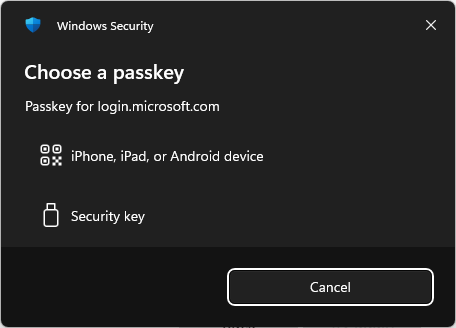
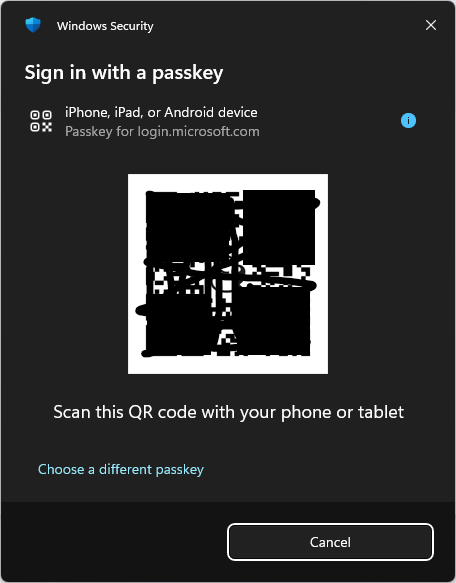
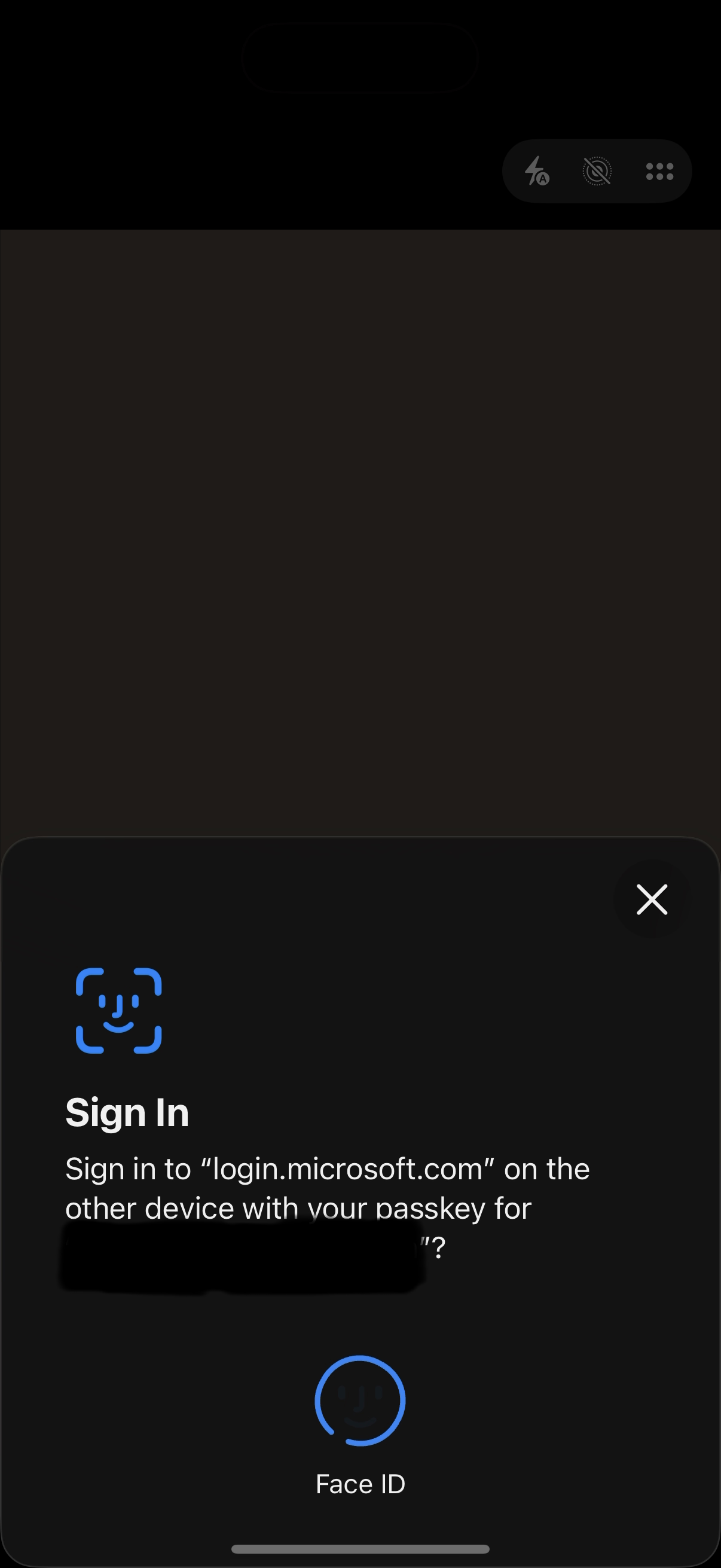
As of this writing in 2026, the jury is still out on passkey adoption and feasibility, as it has not been made very clear to the public how to use and manage passkeys with multiple websites and multiple, often different devices. However, passkeys can be a much safer alternative to passwords for your email logins. So much safer, in fact, that Microsoft announced on July 13th, 2026 the retirement of Short Message Service (SMS) and voice-based authentication for Entra ID (formerly known as Azure Active Directory (AAD)), which is the identity system behind Microsoft 365 (formerly known as Office 365) for business environments. For personal Microsoft Accounts (MSA), which is what individuals use for Outlook.com email, personal Microsoft 365 subscriptions, OneDrive storage, Xbox Live, and so on, SMS retirement already began earlier in the year.
Use Multifactor Authentication (MFA) everywhere allowed
Authenticators are the proof you provide alongside your identity claim (e.g., username) to authenticate who you are. The most common authenticator people are familiar with is the password, but it isn't the only one available.
Authenticators fall into one of the following categories or "factors":
- Something you know (passwords, passphrases, PINs, authentication codes)
- Something you have (hardware or software token, smart card, smartphone)
- Something you are (retina, face, fingerprint)
- Something you do (speak, typing cadence)
MFA simply means you must provide authenticators from two or more different factors to be authenticated successfully. Always use MFA when it is available.
Only use SMS-based MFA if it is the ONLY option available
As of 2026, U.S. National Institute of Standards and Technology (NIST) lists Public Switched Telephone Network (PSTN)-dependent mechanisms such as SMS-based MFA as "restricted authenticators," meaning this type of authenticator is permitted for MFA but only after a system has been properly risk assessed and a migration plan to more secure alternatives has been documented; new systems should not implement SMS-based MFA at all.
Also, as mentioned above, in 2026 Microsoft is beginning the process of retiring SMS- and voice-based authentication methods, including those used for MFA, with the previously mentioned passkeys being the default authentication method.
SMS-based MFA has several security issues, such as:
- Subscriber Identity Module (SIM)-swapping — also called "SIM hijacking," attackers impersonate you through social engineering to convince your mobile carrier to move your phone number from your phone's SIM to a SIM they control, allowing them to receive your SMS-based authentication codes, take over your account, access other sensitive accounts, commit fraud, and more.
- Signaling System No. 7 (SS7)-related problems — SS7 — also known as "Common Channel Signaling System 7" (CCSS7) or C7 — is a collection of telecommunications protocols dating back to the 1970s originally developed for the public telephone network but was extended into the mobile network space as well. It assumes a large degree of trust in the network operators and its users, mostly relying on the physical security of equipment with no inherent authentication or encryption provided. These vulnerabilities can allow attackers to intercept data, commit fraud, steal sensitive information, and more.
Even with the outstanding issues, SMS-based MFA is still better than no MFA at all, but if there is an alternative available, such as passkeys, authenticator apps (like Microsoft Authenticator, Google Authenticator, Duo Security, or Okta Verify) or biometric-based MFA (like Apple's Touch ID and Face ID), use that instead.
Consider using email encryption tools
Modern email systems attempt to tunnel messages between servers using Transport Layer Security (TLS; the successor to the older Secure Sockets Layer (SSL)) encryption, but this is not always enforced between mail servers. Furthermore, TLS only protects the tunnel the email travels through between servers, not the message itself. Each server that receives the message receives a plain, unencrypted copy of the email before sending the email onward to the next server (hopefully over TLS), and if any one of those servers is compromised, the email could potentially end up in the wrong hands. This also means your provider can read the email too.
Although it may be overkill for most people, if you want extra peace of mind, you can leverage email-level security tools such as Pretty Good Privacy (PGP) or its freely available open-source alternative, GNU Privacy Guard (GPG), to create and use keys — tied to your email address as an identifier — that you control to encrypt and decrypt emails you send and receive. One caveat to PGP/GPG: only the email body is encrypted. The subject, sender address, and receiver's address are all still included in the message unencrypted as these pieces of information are needed for routing to the recipient.
An alternative to PGP/GPG is Secure/Multipurpose Internet Mail Extensions (S/MIME), which uses digital certificates for encrypting and signing email, providing strong authentication and integrity checking of the message.
Note that some email providers offer email encryption by default and integrate with desktop email clients. However, different email clients support different tools either as direct integration or with a plugin. For example, Microsoft Outlook and Apple Mail natively support S/MIME, while Mozilla Thunderbird has native PGP/GPG support.
Set your account recovery information and keep it current
It is good to keep a secondary email address strictly for account recovery purposes. Remember that this email address needs to be just as secure; it's for recovering your main email account(s)!
Make sure your accounts have a recovery phone number on file and make sure it's kept updated if you change numbers.
Most online accounts (including email accounts) provide one or more backup or recovery codes. Store these somewhere highly secure, not in your cloud storage like Google Drive or Dropbox! If you have a secure safe or a bank safe deposit box, consider printing the codes and storing the hard copy in these locations.
Some providers, such as Google and Apple, allow you to define a trusted contact that can assist you with regaining access if you end up locked out. Take advantage of this but be sure you fully trust the person you are designating.
Regularly check on the apps, websites, and services you are using your email account to log into
As stated earlier, email accounts are usually not just email accounts; email is just one service your account (Apple ID (now Apple Account), Google Account, Microsoft Account, etc.) provides in addition to the ability to "Login with Apple," "Login with Google," or "Login with Microsoft," or similar, on websites that offer such capability.
It is wise to regularly check which sites your account is being used to log into and revoke/delete access that is no longer needed.
Check your email account's filtering and forwarding rules
Attackers love to add forwarding and filtering rules to compromised email accounts to covertly exfiltrate information without the account holder knowing.
Regularly reviewing what email rules your account is currently using can allow you to immediately spot an anomaly and remove it.
Turn on sign-in and activity alerts
If your email account offers a setting to alert you of activity related to your account, enable it. Typical methods include email, push notification to your mobile device, and text message. This can be especially beneficial for detecting any odd activity like new devices signing into your account or from an unfamiliar location.
Regularly check on active sessions and devices
All this means is "check on every device and app that is currently logged into your account." This can include web browsers (like your Google Account logged into Google Chrome) on each of your devices, web browser extensions, mobile apps (like your Google Account signed into the YouTube app on iOS or Android), and websites. You can also revoke these active sessions, signing your account out of that device or app.
Check if your email addresses have been involved in a breach, and change your passwords accordingly
If you haven't done this before, use a website such as Have I Been Pwned? to check if your email addresses were found in publicly disclosed datasets due to a data breach.
This doesn't mean you can no longer use your email address, but this does mean you need to be extra vigilant in protecting it. If you have not done so, it is strongly recommended to change your password following best practices, ensure you have MFA set up, and make sure you have your account recovery information set.
Being Security Aware
Securing your accounts is just one part of the equation. You must also be conscientious of what you are looking at when interacting with your email.
Check the sender
- Is it from someone familiar?
- Does the email address look odd? Does it match the displayed name?
- "micros0ft.com" instead of "microsoft.com"
- "paypa1.com" instead of "paypal.com"
- "yаhoo.com" instead of "yahoo.com" (this one is tricky; the first one contains the Cyrillic 'а' (Unicode U+0430) instead of the Latin 'a' (Unicode U+0061) in the English alphabet)
- Is it an email supposedly from an official business or organization, but the email address is from a consumer domain like gmail.com, outlook.com, or icloud.com?
Check the tone, urgency, and emotion
Many phishing emails will contain pretext, a fake scenario, complete with authentic-looking logos, imagery, and wording, meant to make you feel the need to quickly react without stopping and thinking:
- "Act within 24 hours or your account will be suspended"
- "Failure to respond will result in legal action"
- "Hurry! Your claim to the jackpot won't last long!"
- "Suspicious Sign-In detected. Verify your identity."
Inspect embedded links (buttons on an email are links)
Links can be deceptive. They can visually show one website, but they point your web browser to a completely different domain/website. Links can be inspected to see their actual destination by hovering your mouse over the link without actually clicking it. If you see a "shortened" URL, such as one from the URL shortener service bit.ly, be extra suspicious of these, especially when in an unsolicited email.
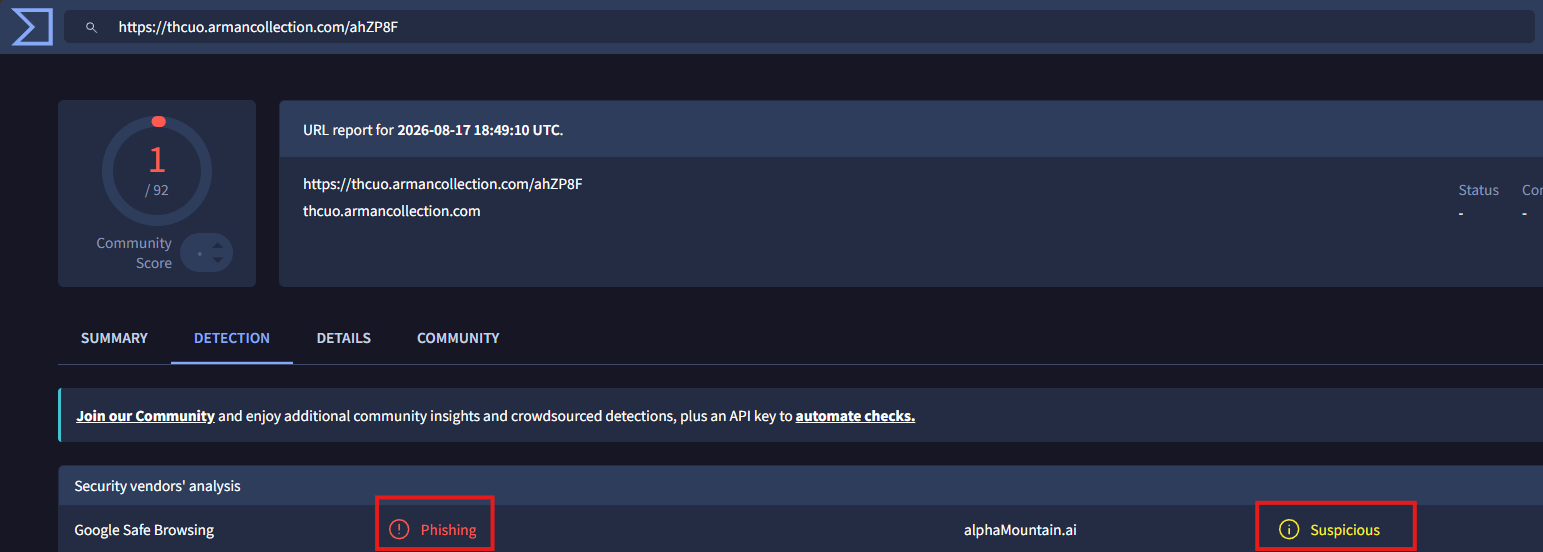
Use a URL scanning site, such as VirusTotal, to have the URL safely inspected. Be very careful not to accidentally click the URL while copying it!
Be very careful with attachments
Attachments can be dangerous and a red flag in their own right. There is no legitimate reason you should receive executable files and code as an email attachment (this is not an exhaustive list):
- .exe (Windows portable executable files)
- .sh (Linux/UNIX/macOS shell scripts)
- .bin (executable binary files)
- .scr (Windows screensaver executable file or AutoCAD script files)
- .bat (Windows Command Prompt batch files)
- .ps1 (Windows PowerShell scripts)
- .js (JavaScript files)
- .vbs (VB Script files)
- .jar (Java Archive files)
- .war (Java Web Archive files)
- .py (Python scripts)
- .rb (Ruby scripts)
- And so on
Office documents (Word (.doc/.docx/.docm), Excel (.xls/.xlsx/.xlsm), etc.) are infamous for containing embedded code called "macros" which can be malicious. If you get prompted to "enable macros," or "enable content," be extremely cautious.
Portable Document Format (PDF, .pdf) documents can also contain hidden code within their structure. Just like Office documents, scrutinize unsolicited PDF files that you've been sent.
Compressed archives (ZIP, .zip/.gz/.bz2) are like folders full of items that have been processed through an algorithm to reduce their size while retaining their core data and features. Like other types of attachments, ZIP files can contain malicious code when extracted and expanded.
To summarize, legitimate attachments are typically expected ahead of time and can usually be confirmed directly with the sender if anything seems off. If you receive unsolicited attachments, be highly suspicious.
Heavily doubt requests or demands for sensitive or personal information
Legitimate organizations, such as banks and government agencies, essentially never ask through email to validate or confirm sensitive information, such as passwords, Social Security or driver's license numbers, or payment card numbers.
Similarly, an email that looks official requesting that you "verify your account" with a link or button to click leading to a login form is using a very common tactic for stealing account credentials (usernames and passwords).
When in doubt, ignore the email and contact the organization directly, preferably through a different channel such as their website or their official telephone number (not any numbers found in the email itself).
Pay close attention to the quality and consistency of the email
- Notice the email's grammar and spelling.
- Does the email's content address you by name or is it more generic like "Dear Customer"?
- Do the images, logos, and fonts appear to be low-resolution or low-quality?
- Does the email match the quality or finish of the real company's typical emails you normally receive?
- One item to note here: with the explosion of adversarial usage of Artificial Intelligence (AI), phishing emails have gotten far more polished and believable, so these quality details may be less apparent if at all. Still, you should be diligent in scrutinizing email messages received.
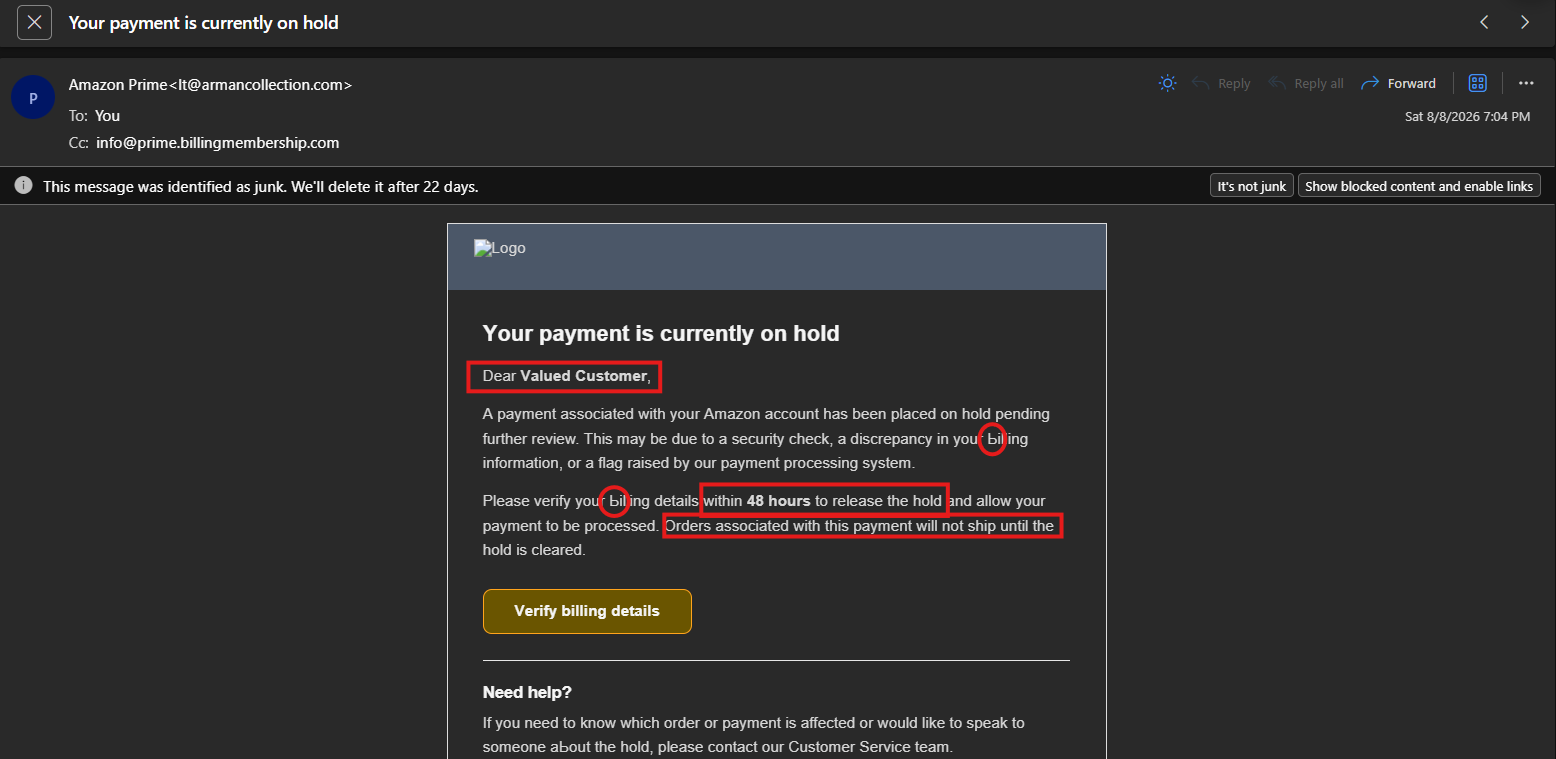
BONUS: Check the email headers
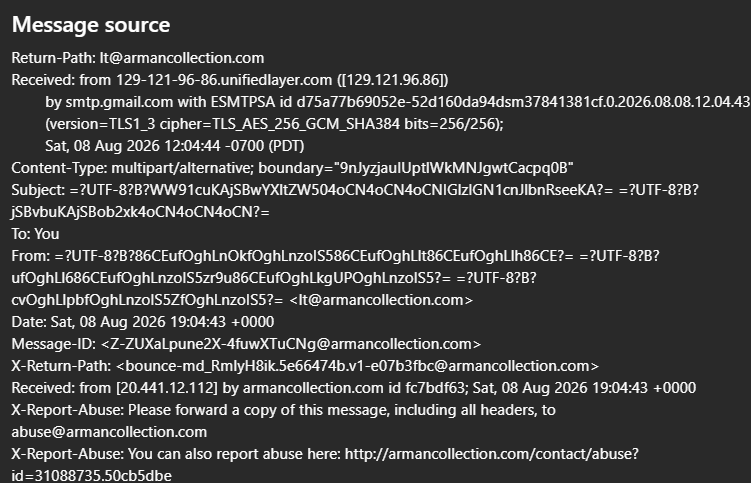
Many email clients allow you to view the complete list of headers generated as the email traversed from sender to recipient. You can check the authentication headers (SPF, DKIM, DMARC, and ARC) and validate the Reply-To and From addresses to see if they're different.
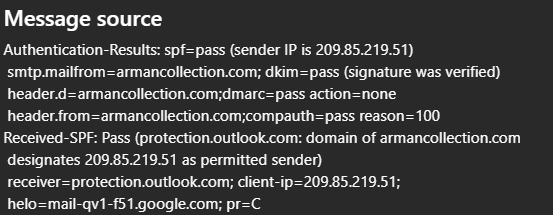
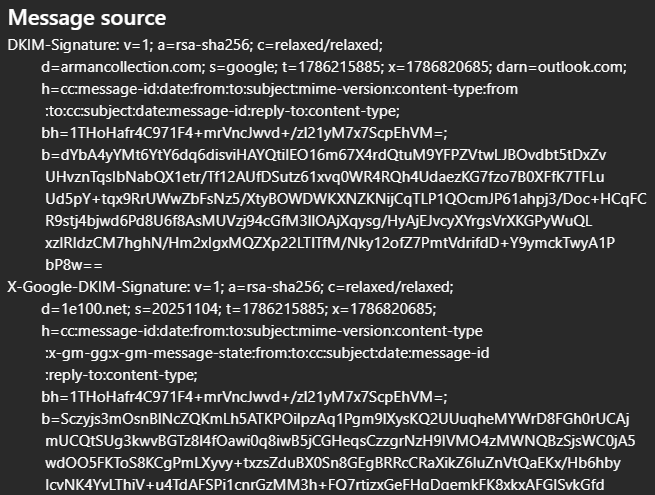
In the phishing email shown above, notice that the SPF and DKIM headers show "passed," reminding us that no safeguard is perfect and why you must have layers of security to protect yourself.
SPF Passed:
DKIM Passed:
Tampered From and Return-Path headers:
VirusTotal indicating phishing email:
Summary
This was a lot to go through, wasn't it? There's far more to email than you probably anticipated when you started reading this post. The point to drive home isn't the intricacies of email and network communications. The main take-aways are to ensure your accounts are as secure as you can reasonably make them, be vigilant in observing oddities with your accounts, and practice awareness as you interact with emails you receive.
In the next post, I will dive into what vulnerabilities are and why those pesky, seemingly never-ending software updates are so important.
References
Email Usage Statistics
- "Email Marketing Statistics." Forbes Advisor. https://www.forbes.com/advisor/business/software/email-marketing-statistics-jul-26/ — Source for the 4.48 billion global email users and 361.6 billion daily messages figures.
History of Email
- Roberts, E. (Stanford CS). "The Origins of E-mail." Stanford University. https://cs.stanford.edu/people/eroberts/courses/soco/projects/1999-00/internet/email.html — Source for the SNDMSG/READMAIL/CPYNET narrative, Abhay Bhushan's FTP work, and Stephen Lukasik's role as an early ARPA advocate for email.
- "History of email." EmailCloud. https://emailcloud.com/timeline/
- "Abhay Bhushan." Internet Hall of Fame. https://www.internethalloffame.org/inductee/abhay-bhushan/ — Source for Abhay Bhushan's background as a computer scientist and Internet pioneer.
Core Email Protocols (RFCs)
- Klensin, J. "Simple Mail Transfer Protocol." RFC 5321, October 2008. https://datatracker.ietf.org/doc/html/rfc5321
- Resnick, P., Ed. "Internet Message Format." RFC 5322, October 2008. https://datatracker.ietf.org/doc/html/rfc5322
- Gellens, R. and Klensin, J. "Message Submission for Mail." RFC 6409 (defines the MSA), November 2011. https://datatracker.ietf.org/doc/html/rfc6409.html
- MIME series: RFC 2045–2049 (Multipurpose Internet Mail Extensions). https://datatracker.ietf.org/doc/html/rfc2045
Email Authentication (SPF, DKIM, DMARC, ARC)
- Kitterman, S. "Sender Policy Framework (SPF) for Authorizing Use of Domains in Email, Version 1." RFC 7208, April 2014. https://datatracker.ietf.org/doc/html/rfc7208
- Crocker, D., Hansen, T., and Kucherawy, M., Eds. "DomainKeys Identified Mail (DKIM) Signatures." RFC 6376 (STD 76), September 2011. https://datatracker.ietf.org/doc/rfc6376/ — Published 2011; elevated to full Internet Standard status in 2013.
- Herr, T. and Levine, J., Eds. "Domain-Based Message Authentication, Reporting, and Conformance (DMARC)." RFC 9989, May 2026 (obsoletes RFC 7489 and RFC 9091). https://datatracker.ietf.org/doc/rfc9989/
- Andersen, K. et al. "The Authenticated Received Chain (ARC) Protocol." RFC 8617 (Experimental), July 2019. https://datatracker.ietf.org/doc/html/rfc8617
- "Reclassifying ARC as Historic." IETF Internet-Draft, April 2026. https://datatracker.ietf.org/doc/draft-ietf-dmarc-arc-to-historic/ — Note that ARC has been proposed for deprecation in favor of a DKIM2 successor; still an active draft, not finalized.
Passwords, MFA, and NIST Guidance
- "Authenticators." NIST SP 800-63B Digital Identity Guidelines Resource Center. https://pages.nist.gov/800-63-3-Implementation-Resources/63B/Authenticators/ — Source for SMS/PSTN authentication being classified as a "restricted authenticator" rather than deprecated.
- NIST Special Publication 800-63B, Section 5. https://pages.nist.gov/800-63-3/sp800-63b.html
Passkeys and Microsoft Authentication Changes
- "Microsoft Entra ID security updates: Passkeys are the default authentication method in Entra ID." Microsoft Security Blog, July 13, 2026. https://www.microsoft.com/en-us/security/blog/2026/07/13/microsoft-entra-id-security-updates-passkeys-are-the-default-authentication-method-in-entra-id/
- "Passkeys by default and retirement of Microsoft-provided SMS and voice authentication." Microsoft Learn. https://learn.microsoft.com/en-us/entra/identity/authentication/concept-sms-voice-retirement
- Winder, D. "Microsoft Is Scrapping SMS 2FA Codes — What You Need To Do." Forbes, May 21, 2026. https://www.forbes.com/sites/daveywinder/2026/05/21/microsoft-is-scrapping-sms-2fa-codes-what-you-need-to-do/ — Source for the separate, earlier (May 2026) phase-out of SMS codes for personal Microsoft accounts.
IMAP, POP3, and Basic Authentication Deprecation
- "Deprecation of Basic authentication in Exchange Online." Microsoft Learn. https://learn.microsoft.com/en-us/exchange/clients-and-mobile-in-exchange-online/deprecation-of-basic-authentication-exchange-online
Account Recovery and Security Hygiene
- "Add, manage & use recovery contacts." Google Account Help. https://support.google.com/accounts/answer/16590793 — Source for Google's Recovery Contacts feature.
- "'Apple ID' Renamed to 'Apple Account' Across iOS 18 and Other Updates." MacRumors. https://www.macrumors.com/2024/06/11/apple-id-renamed-to-apple-account/
- "Have I Been Pwned: Who, What & Why." https://haveibeenpwned.com/About
Note: several of the above are living pages or in-progress drafts (especially the ARC-to-Historic draft and the Microsoft SMS/voice retirement timeline) and may be updated after this post's publication date.